Menu
Ubo App
Home screen actions → Menu
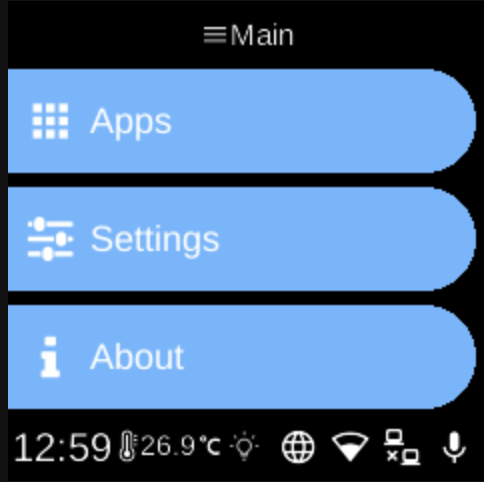
The Menu (hamburger icon ) on the home screen opens the main navigation. From here you can reach apps, settings, and device information.
Main menu
After tapping the menu icon, you see three options:
- Apps — Lists Docker apps installed on the device. If none are installed, the list shows “No apps”.
- Settings — Opens the settings menu, organized by category (e.g. Network, Remote, System, Hardware, Assistant, Docker, Accessibility). Each category may contain toggles and service options.
- About — Opens the About screen with device and version information.
Navigation
- Use UP and DOWN to move between items.
- Use L1, L2, or L3 to select the first, second, or third item on the screen.
- Use BACK to go back one level or close the menu.
- Use HOME to return to the home screen.
Settings and Apps use sub-menus: choose an item to open its sub-menu, then navigate and select as above.