Notifications
Ubo App
Home screen actions → Notifications
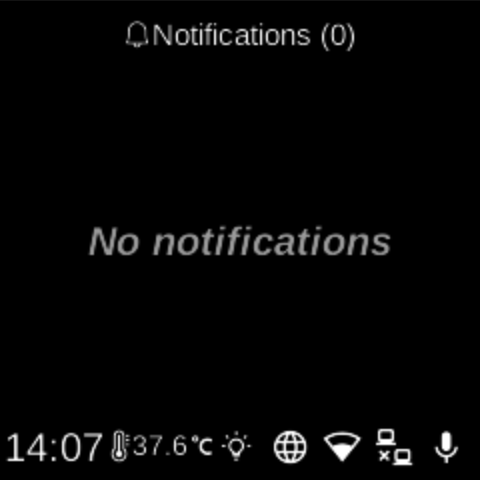
The Notifications (bell icon ) on the home screen shows all active alerts and messages. The bell may turn yellow when there are unread notifications.
Notification list
- The screen title shows Notifications and the current unread count, e.g. “Notifications (3)”.
- Each notification appears as a row with a title. Notifications can have different colors and icons depending on importance (e.g. low, normal, high).
- Notifications that have expired (based on their expiration time) are not shown.
- If there are no notifications, the list shows “No notifications”.
Viewing a notification
- Use UP and DOWN to move between notifications.
- Use L1, L2, or L3 to open the selected notification. The full content is shown in a scrollable view.
- From the detail view you can read the message, see any extra information, and use any actions attached to the notification (e.g. dismiss or open an app).
- Use BACK to return to the notification list or to the home screen.
Unread indicator
The notification icon on the home screen uses a different color when there are unread notifications so you can see at a glance that new alerts are available.