Picovoice Settings
Ubo App
Home screen actions → Menu → Settings → Accessibility → Picovoice Settings
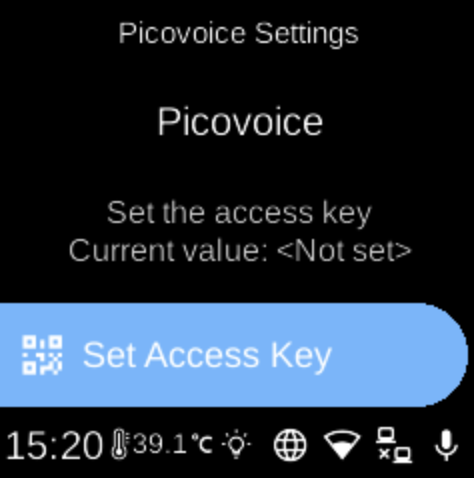
Picovoice Settings (PV) configures Picovoice Orca for text-to-speech. Open it from Accessibility in Settings. You may need an access key to use Picovoice.
What you see
When you open Picovoice Settings, the screen title is Picovoice Settings with heading Picovoice and a sub-heading that describes the option or how to get an access key. You see menu items such as entering or updating your Picovoice access key (e.g. via QR code or Web UI). The key is stored securely and used when Speech Synthesis uses a Picovoice-based engine.
The exact items depend on your device and how the speech synthesis service is configured.
Navigation
- Use UP and DOWN to move between options.
- Use L1, L2, or L3 to select an item or complete a step (e.g. submit access key).
- Use BACK to return to the Accessibility menu.
- Use HOME to go to the home screen.