Camera
Ubo App
Home screen actions → Menu → Settings → Hardware → Camera
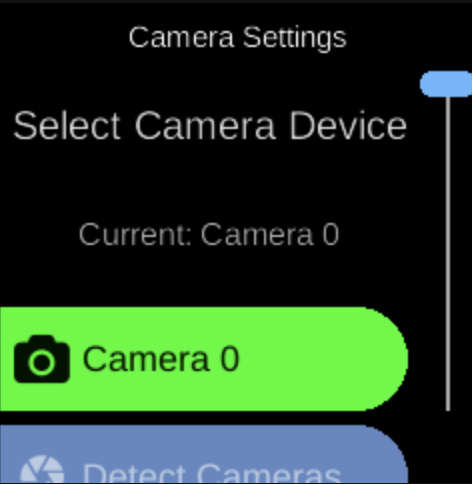
Camera () lets you choose which camera device to use and run a camera detection scan. Open it from Settings → Hardware.
What you see
When you open Camera, the screen title is Camera Settings with heading Select Camera Device. The sub-heading shows the current selection (e.g. “Current: Camera 0”) or “No cameras detected” if none are available.
- Camera 0, Camera 1, … — One option per detected camera. The selected camera is highlighted (e.g. green). Select an option to switch to that camera.
- Detect Cameras () — Run a scan to detect connected cameras. Use this if you have just connected a camera or if the list is empty.
If no cameras are detected, the list may show a placeholder such as “No cameras detected. Click ‘Detect Cameras’ to scan.”
Navigation
- Use UP and DOWN to move between camera options and Detect Cameras.
- Use L1, L2, or L3 to select a camera or run Detect Cameras.
- Use BACK to return to the Hardware settings list or the main menu.
- Use HOME to go to the home screen.