Infrared
Ubo App
Home screen actions → Menu → Settings → Hardware → Infrared
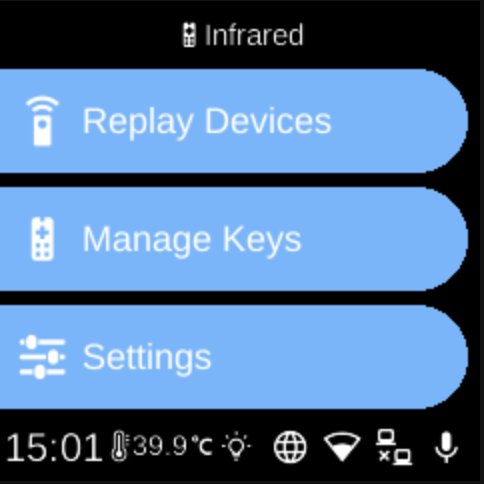
Infrared () lets you pair and manage IR remote devices and control whether the device receives or propagates keypad actions from IR. Open it from Settings → Hardware.
What you see
When you open Infrared, the screen title is Infrared and you see:
- Replay Devices () — List of registered IR devices. Select a device to send (replay) its IR code. If none are registered, you see “No devices registered”.
- Manage Keys () — Add or remove IR devices:
- Add Keys (+) — Start pairing a new remote. You may be prompted to point the remote at the device and press a button to capture codes.
- Remove Keys (-) — List of registered devices; select one to remove it. Shows “No devices registered” if the list is empty.
- Settings () — Toggles for IR behaviour:
- Receive Keys — When on, the device accepts IR keypresses (e.g. from a remote). When off, IR input is ignored.
- Propagate Keys — When on, keypad actions are propagated (e.g. to other systems). When off, they are not. The selected state is highlighted.
Navigation
- Use UP and DOWN to move between options and (in sub-menus) between devices or settings.
- Use L1, L2, or L3 to select an option, choose a device, or toggle a setting.
- Use BACK to go back one level or leave Infrared.
- Use HOME to return to the home screen.
During device registration, BACK or HOME may cancel the pairing process.