Manage Keys
Ubo App
Home screen actions → Menu → Settings → Hardware → Infrared → Manage Keys
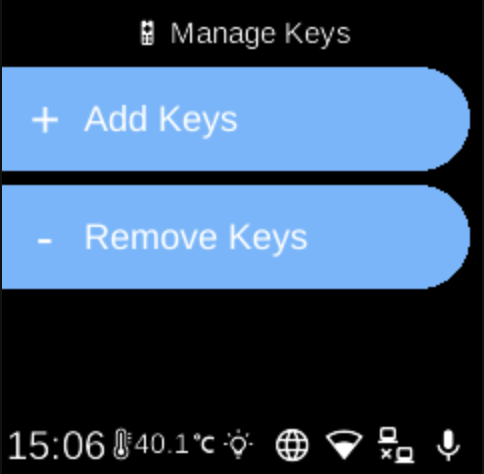
Manage Keys () lets you add new IR remotes or remove registered devices. Open it from Infrared in Hardware settings.
What you see
When you open Manage Keys, the screen title is Manage Keys and you see:
- Add Keys (+) — Start pairing a new IR remote. The device will listen for IR signals. You may be prompted to point the remote at the Ubo device and press a button to capture the code. Follow the on-screen steps to name and save the device. BACK or HOME during pairing may cancel registration.
- Remove Keys (-) — Open a list of all registered devices. Select a device to remove it. After removal, that device no longer appears in Replay Devices. If no devices are registered, the list shows No devices registered.
Navigation
- Use UP and DOWN to move between Add Keys, Remove Keys, and (in Remove Keys) between devices.
- Use L1, L2, or L3 to select an option or confirm removal.
- Use BACK to go back one level or cancel pairing.
- Use HOME to return to the home screen (may cancel pairing).