RPi Connect
Ubo App
Home screen actions → Menu → Settings → Remote → RPi Connect
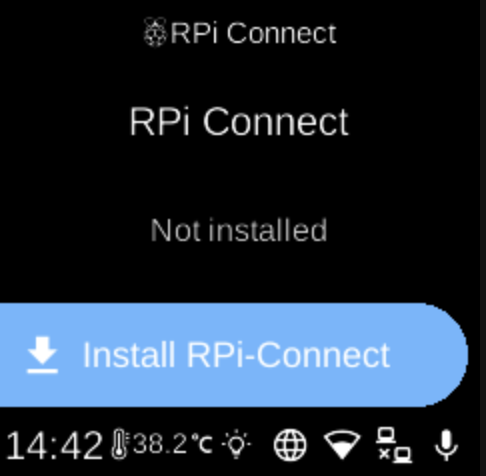
RPi Connect () lets you access your Ubo device remotely for screen sharing and remote shell. Open it from Settings → Remote.
RPi Connect menu
When you open RPi Connect, the screen shows the heading RPi Connect and a status line (e.g. screen sharing and remote shell session counts, “Not installed”, “Not running”, “Needs authentication”, or “Downloading...”).
What you see
Depending on state, you may see:
- Show URL () — When there are active screen sharing or remote shell sessions, opens a screen with a URL or QR code so you can connect from another device.
- Sign in / Sign out — Sign in to your RPi Connect account, or sign out if already signed in.
- Start / Stop ( / ) — Start or stop the RPi Connect service on the device.
- Install RPi-Connect / Uninstall RPi-Connect () — Install the service if it is not installed, or uninstall it if it is.
If the service is downloading or status is unknown, some options may be hidden until the state is known.
Navigation
- Use UP and DOWN to move between options.
- Use L1, L2, or L3 to select an option or run an action.
- Use BACK to return to the Remote settings list or the main menu.
- Use HOME to go to the home screen.