Users
Ubo App
Home screen actions → Menu → Settings → System → Users
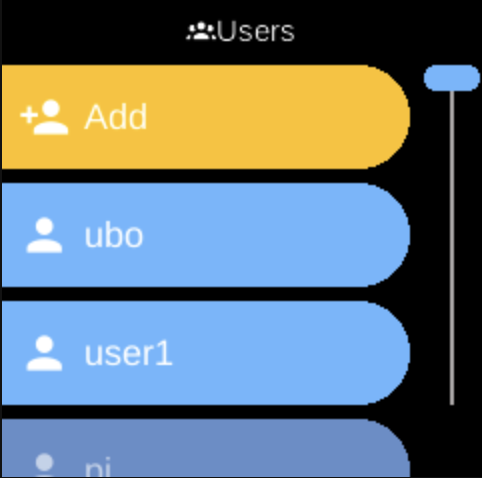
Users () lets you add device user accounts, reset passwords, and delete users. Open it from Settings → System. The list reflects accounts on the device (e.g. from the system accounts service).
What you see
When you open Users, the screen title is Users. While loading you may see “Loading...” and “Please wait...”. Once loaded you see:
- Add () — Add a new user account. Opens a flow to create an account (e.g. via Web UI or device prompt). Shown with a warning-style (orange) label.
- One entry per user — Each existing user appears by username (e.g.
ubo). Select a user to open their options.
Per-user options
When you select a user, you see:
- Reset Password () — Start the process to reset that user’s password. You may be prompted for the new password (e.g. via Web UI or QR code). Shown with a warning-style label.
- Delete () — Delete that user account. A confirmation may be shown. The default user (e.g.
ubo) cannot be removed and may not show Delete, or the option may be disabled.
Navigation
- Use UP and DOWN to move between Add, user names, and (inside a user) between Reset Password and Delete.
- Use L1, L2, or L3 to select an option or confirm an action.
- Use BACK to go back one level or leave Users.
- Use HOME to return to the home screen.