Wi-Fi
Ubo App
Home screen actions → Menu → Settings → Network → Wi-Fi
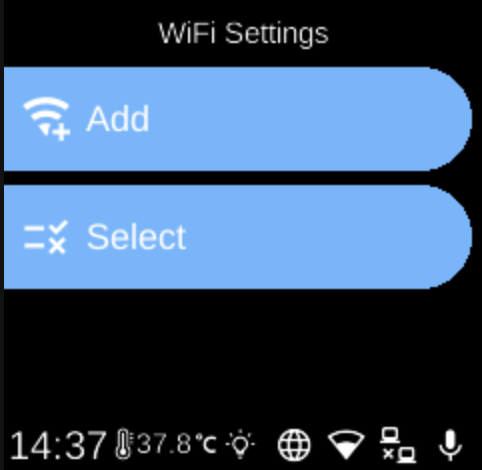
Wi-Fi () lets you add, select, connect to, and manage wireless networks. Open it from Settings → Network.
WiFi Settings menu
When you open Wi-Fi, the screen title is WiFi Settings and you see two options:
- Add () — Add a new Wi‑Fi network. Opens a flow where you can enter or scan network details (e.g. SSID and password). On some devices you can use the Web UI to enter credentials.
- Select () — Show a list of known Wi‑Fi networks. The list may show “Loading...” while networks are scanned, then each saved network by name (SSID). If none are saved, it shows “No Wi-Fi connections found”.
Connection list (Select)
After choosing Select, each network appears as a row. Icons indicate state (e.g. connected, disconnected, connecting) and signal strength for disconnected networks. Choose a network to open its connection screen.
Connection screen
For a chosen network you can:
- Connect / Disconnect — Connect to the network or disconnect from it. While connecting, the button shows “Connecting...”.
- Delete — Forget the saved network so it is removed from the list. The device will no longer try to join it automatically.
Use BACK to return to the connection list or to WiFi Settings.
Navigation
- Use UP and DOWN to move between options (Add, Select, or items in the connection list).
- Use L1, L2, or L3 to select an option or confirm an action (Connect, Disconnect, Delete).
- Use BACK to go back one level or leave Wi‑Fi settings.
- Use HOME to return to the home screen.